0%

Choosing a Wireless Document Camera in 2026 means looking beyond resolution claims. A sharp image matters, but so do stable connections, responsive autofocus, and clear software support. In a classroom, a brief delay can interrupt a demonstration. At a desk, a weak battery can become a daily frustration. Small details count.

This guide compares seven models through practical considerations: image quality, wireless range, setup, portability, lighting, and compatibility with common teaching and meeting platforms. It also considers what each camera is designed to handle, from textbook pages and handwritten notes to small objects shown under the lens. No single model suits every room. Some prioritize portability, while others offer better controls or a more dependable connection. Trade-offs are real.

Specifications can change, and advertised wireless performance may differ in busy rooms with competing networks. Check the manufacturer’s latest details before buying, especially for operating-system compatibility, included accessories, and warranty terms. A camera that looks excellent on paper may still feel awkward during a live lesson. That deserves a second look. The recommendations ahead are intended to help teachers, trainers, and remote presenters narrow their choices with clear criteria—not promise a perfect device.
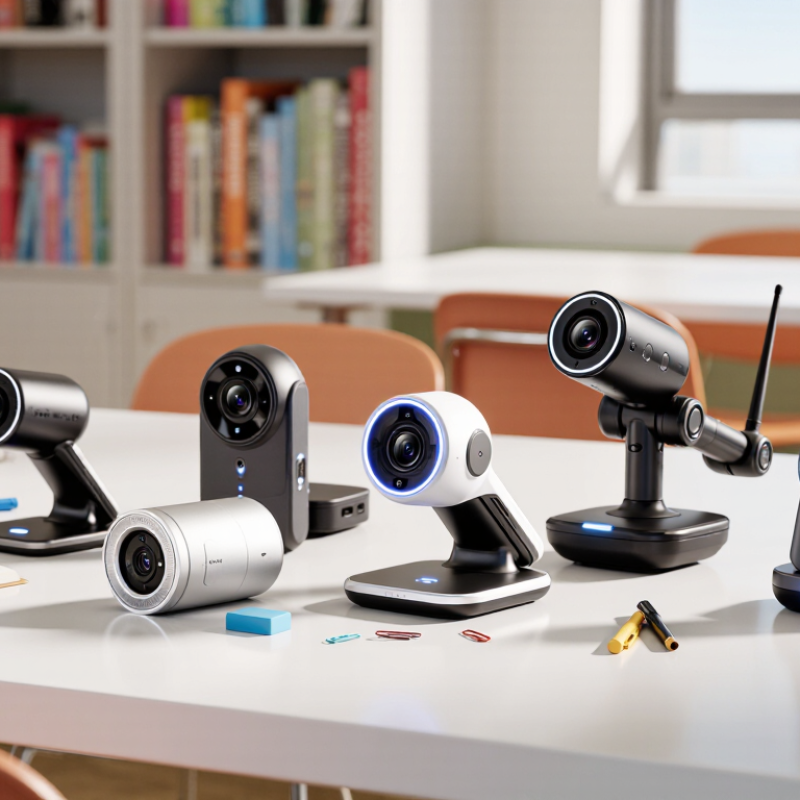
7 Best Wireless Document Camera Models in 2026

What Wireless Document Cameras Are and How They Work

A wireless document camera uses a small lens and image sensor to capture paper, books, objects, or demonstrations on a desk. It sends the live image to a computer, projector, or display through Wi-Fi or a direct wireless connection. No cable tether. The camera’s arm or overhead mount keeps the lens pointed down, while built-in lights help reveal pencil marks and fine print. Some models also include a microphone, but clear audio still depends on room noise and distance.

In practice, setup usually means connecting the camera and display to the same network, or pairing them directly, then opening compatible viewing software. The image can be enlarged, paused, or annotated, depending on the model. That matters. Wireless convenience does not guarantee a smooth lesson: crowded networks may cause lag, and weak batteries can interrupt a demonstration.

A slight delay may be harmless when showing a worksheet, but frustrating during a live experiment. Check image resolution, autofocus, battery life, and connection options before choosing a model. Also test it in the room where it will be used; a camera that looks sharp on a laptop may appear dim on a large screen. One detail is easy to overlook: glossy pages can reflect the built-in light, so adjusting the camera angle may help.

Key Features to Compare in Wireless Document Cameras

When comparing wireless document cameras in 2026, look beyond the advertised resolution. A sharp image should show small print, pencil marks, and fine details without harsh glare. Check how the camera handles mixed lighting, such as a bright desk lamp beside a shaded page. A flexible arm and a stable base also matter when you need to show a book or a small object. Test the focus. Some cameras refocus slowly after you move a page.

Wireless performance affects the lesson as much as image quality. Check which network bands and connection methods the camera supports, then test it in the room where you plan to use it. Walls and crowded networks can cause lag or dropped frames. That matters during live annotation. Battery life, charging time, and the option to use a wired connection are worth comparing, especially for longer sessions. A manufacturer’s battery estimate may differ from real classroom use.

Look at controls and compatibility, too. Physical buttons for zoom, focus, or image capture can be easier to use than a tiny on-screen menu. Confirm that the camera works with your computer, display, and teaching software before buying. Consider its folded size and weight if it will move between rooms. Portability helps, but lightweight stands can wobble when you adjust the arm. That trade-off is easy to overlook.

Seven Wireless Document Camera Models Worth Considering in 2026

Seven wireless document camera models worth considering in 2026 should be compared by how they work in a real room, not by feature lists alone.

Consider a compact battery-powered model for mobile teaching, a folding travel unit, and a tabletop camera with a weighted base. Other useful options include a model with a wireless receiver, one with onboard recording, a high-resolution close-up unit, and a dual-view camera for documents and demonstrations. Check how quickly each connects, whether focus holds on small print, and how clearly it captures pencil marks under ordinary classroom lighting. Test the wireless range from the back row. A signal that works beside a laptop may falter across a crowded room.

Connectivity matters, but a wireless label is not a performance guarantee. The Wi-Fi Alliance estimated that Wi-Fi’s global economic value would reach 4.9 trillion dollars in 2025; this broad forecast describes the importance of wireless infrastructure, not camera reliability. For a practical comparison, test image delay, battery life, and reconnection after sleep. A teacher should be able to move a page without the image stuttering.

Small detail.

Also check whether the camera works with existing displays and conferencing software, and whether its controls are usable from across a desk. A few models may look excellent on paper yet feel awkward during a live lesson. That is worth admitting: the best fit depends on room layout, network congestion, and how often the camera leaves the desk.

How to Match a Camera to Your Teaching or Presentation Needs

Choosing among the best wireless document camera models in 2026 starts with how you teach or present. For live lessons, prioritize steady autofocus, readable fine print, and low video delay. A worksheet should stay sharp when you move a pencil across it. For demonstrations, check whether the camera adjusts easily from a page to a small object. A flexible arm helps, but only if it holds position without wobbling.

Wireless convenience depends on the room. Walls, crowded networks, and distance can interrupt a feed, so check the camera’s stated range and test it where you plan to use it. Battery life matters during long classes; a charging option can prevent an awkward pause. Also confirm that the camera works with your display or conferencing setup. I’ve found that “easy to connect” can still mean a few minutes of settings work. That detail is easy to overlook.

Tips: Test with your smallest printed text, not just a full page. Move the camera to your usual teaching position and watch for lag. Keep a cable nearby. Simple, but useful. If several people will operate it, let a colleague try the controls before choosing; what feels intuitive to one person may not feel that way to everyone.

7 Best Wireless Document Camera Models in 2026 - How to Match a Camera to Your Teaching or Presentation Needs

Model profile Best suited to Typical image resolution Wireless connection Power and portability Useful features Consider before choosing
1. Classroom All-Rounder Everyday lessons, worksheets, books, and small demonstrations 8 MP still-image sensor; commonly supports Full HD video output Wi-Fi connection to a computer, tablet, or compatible display Rechargeable battery; typically designed for desk-to-desk use Autofocus, adjustable camera head, image rotation, and freeze-frame Check that its app or receiver works with the school’s devices and network.
2. 4K Detail Presenter Showing fine print, diagrams, artwork, or detailed physical objects Up to 4K UHD output (3840 × 2160) on compatible setups Wi-Fi; some configurations also offer a wired video connection Usually mains-powered; better suited to a fixed presentation station High-resolution capture, zoom, and flexible positioning 4K output requires a compatible display, connection, and software workflow.
3. Portable Battery Model Traveling teachers, shared classrooms, and presentations away from outlets Typically Full HD video, with higher-resolution still capture on some configurations Wi-Fi to a compatible computer, tablet, or display Built-in rechargeable battery; runtime varies with camera use and wireless streaming Compact foldable arm, lightweight body, and quick setup Confirm battery runtime and whether charging is possible while presenting.
4. Large-Area Capture Model Maps, large diagrams, posters, and wide-format teaching materials Full HD or higher, depending on configuration Wi-Fi; some models can share video through a compatible display receiver Typically powered by an adapter or USB; often has a larger base or arm Wide camera reach, adjustable arm, and image rotation Check the maximum capture area and desk clearance before buying.
5. Microscope-Ready Model Science lessons and demonstrations using a microscope or close-up lens Full HD video is common; output depends on the camera and microscope adapter Wi-Fi streaming to compatible teaching devices Usually mains-powered for longer lessons and continuous streaming External lens or microscope adapter support, focus controls, and image freeze Verify adapter compatibility and focus range; accessories may be separate.
6. Hybrid-Meeting Model Remote lessons, hybrid meetings, and live annotation or screen sharing Typically Full HD video for live streaming Wi-Fi with compatible video-conferencing or classroom software USB or mains power is common; intended for a stable desk setup Low-latency streaming, autofocus, and software-based image sharing Check supported operating systems, network requirements, and conferencing apps.
7. Simple Plug-and-Share Model Users who want straightforward setup for occasional document sharing Typically Full HD video; capture quality varies by lighting and lens Wireless sharing through a companion app or receiver Often USB-powered, so a nearby power source may be needed Basic autofocus, compact controls, and a simple sharing workflow Confirm that wireless sharing does not require an unavailable app or receiver.
How to use this comparison: These are brand-neutral model profiles, not named product listings. Resolution, battery life, compatibility, and included accessories vary by product; verify the manufacturer’s current specifications before purchase. “Wireless” may describe video transmission and does not necessarily mean the camera is battery-powered.

Setup, Connectivity, and Compatibility Considerations

When comparing seven wireless document camera models, start with the room, not the feature list. Check whether the camera can reach the display without crossing a busy walkway. A small desk may need a folding arm, while a fixed teaching station can accommodate a wider base. Test setup time, too. If pairing takes several steps, it may become frustrating between classes.

Wireless connections vary in range, delay, and stability. Place the camera where it will actually be used, then stream a page with fine print and moving hands. Watch for frozen frames or soft text. Compatibility deserves the same care: confirm support for your computer, operating system, classroom display, and conferencing software. Some models connect directly; others rely on an app or receiver. That extra step is easy to overlook. A USB fallback can help when wireless performance dips, though it slightly weakens the promise of a cable-free setup.

Tips: Before choosing, test your own network and display. Try a worksheet with small labels, not just a blank page. Check charging access and whether multiple users can reconnect quickly. Specs help, but a brief real-room trial may reveal an awkward setup.

FAQS

What does a wireless document camera do?

It captures pages, books, and small objects from above. The live image goes to a computer or display wirelessly.

How do I connect one for a lesson?

Connect it and the display to the same network, or pair them directly. Open compatible viewing software. Test the setup before class.

What should I check about image quality?

Look for clear small print, pencil marks, and steady autofocus. Try a worksheet, not just a blank page. Details matter.

Can room lighting affect the image?

Yes. A desk lamp can create uneven lighting, and glossy pages may reflect built-in lights. Try changing the camera angle.

What can make a wireless image lag?

Weak signals, walls, or crowded networks can cause delays or frozen frames. Test the camera where you will use it.

How can I check compatibility?

Confirm support for your computer, operating system, display, and teaching software. Some cameras need an app or receiver. That extra step can be easy to miss.

What should I know about batteries and backup connections?

Compare battery life and charging time, then test them during a real session. A USB fallback can help when wireless performance dips. Less cable-free, but useful.

Is a lightweight camera always easier to use?

It is easier to carry between rooms, but a light stand may wobble when you adjust the arm. I would test that movement before relying on it.

Conclusion

This guide explains what a Wireless Document Camera is and how it sends live images of books, worksheets, objects, and other materials to a display without a direct video cable. It outlines the features worth comparing in 2026, including image clarity, focusing and lighting, wireless range, battery life, portability, and ease of use. Seven types of models are considered, with attention to the different strengths that may suit classrooms, remote lessons, meetings, or presentations.

Choosing the right camera depends on how and where it will be used. The guide helps readers match camera capabilities to teaching and presentation needs, from showing fine details to moving easily between rooms. It also covers practical setup considerations, such as available wireless networks, connection options, device compatibility, and display requirements, so readers can assess whether a camera will fit smoothly into their existing setup.

Amelia

Amelia

Amelia is a professional marketing specialist with a deep understanding of her company’s products and the needs of the people who use them. She regularly contributes expert articles to the company website, turning product knowledge and industry insights into clear, practical guidance. Her writing......