0%

Choosing a USB Document Camera in 2026 means looking beyond resolution. The right model should make pages, small objects, and handwritten notes clear without slowing a lesson or meeting. Check how it handles focus, lighting, and movement. A glossy textbook page can reflect a ceiling lamp. A quick autofocus adjustment can also distract viewers.

AV specialist Maya Chen offers a practical reminder: “A document camera earns its place when people can read the detail without thinking about the camera.” Use that idea as a buying test, not a substitute for verified specifications. Compare sample footage, connection requirements, and software compatibility. Check whether the camera works with your computer and video platform. Confirm the warranty and support terms, too.

This guide explains the features that matter, from image quality and flexible positioning to portability and setup. It also considers where a basic model may be enough, and when extra controls justify a higher price. Small details count. A stiff arm, dim image, or awkward cable can become irritating during everyday use. Specs do not tell the whole story; real classroom or desk testing may change your shortlist. There is no perfect choice for everyone. The best USB Document Camera is the one that fits your documents, room, and routine—with fewer surprises once it is plugged in.
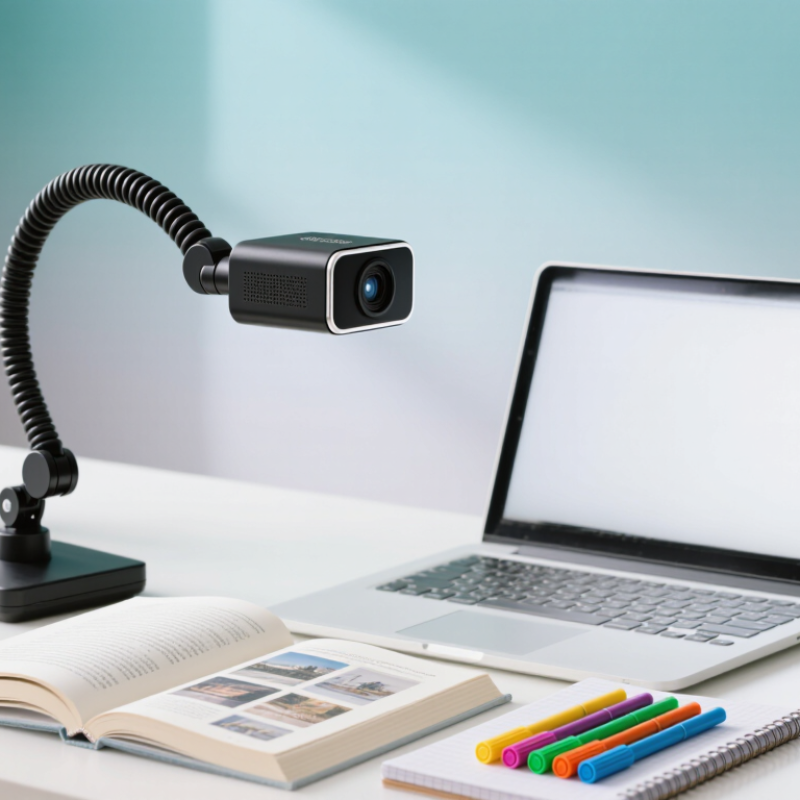
How to Choose a USB Document Camera in 2026

Set the Use Case: ISO 216 A3 Pages Measure 297 × 420 mm

Before comparing autofocus or document-sharing features, define the largest page you need to capture. ISO 216:2007 sets A3 at 297 × 420 mm, roughly 11.7 × 16.5 inches. Measure your actual workspace, too. A thick book, raised page corners, or a hand holding the sheet can extend beyond the flat-page footprint. That sounds simple. It isn’t. A camera that frames A3 only at its highest position may leave little room for annotations or page movement.

Resolution matters when the image must show small print, pencil marks, or fine diagrams. At 300 pixels per inch, a full A3 image needs about 3,508 × 4,961 pixels, or 17.4 megapixels; this is calculated from ISO dimensions, not a camera-performance guarantee. Check the raw output. Interpolation can increase file dimensions without restoring detail. Also check whether the camera can capture the entire page in portrait and landscape orientations, with even light near all four corners. USB-IF lists USB 2.0 signaling at up to 480 Mbit/s, but that figure does not guarantee a camera’s real video throughput. Ask for native-resolution sample files and test them on your own computer. A slightly imperfect test is still useful: capture a page with small text, then inspect the corners at full size.

Compare Image Detail: 1080p Has 2.07 MP; 4K UHD Has 8.29 MP

How to Choose a USB Document Camera in 2026

A 1080p image contains about 2.07 megapixels, while 4K UHD contains about 8.29 megapixels. That is roughly four times as many pixels, which can help when showing tiny print, pencil marks, or fine lines on a circuit diagram. A 4K image also gives more room to crop while keeping readable detail. But not always.

Pixel count alone does not guarantee a sharper picture. Lens quality, focus, lighting, and the camera’s processing all affect what appears on screen. A weak lens may blur small text even at 4K, while uneven light can wash out faint handwriting. Check that autofocus settles quickly, and look for clear detail near the edges of the frame, not just the center.

For a fair comparison, place the same printed page under each camera at the same height and lighting. Examine small serif text and thin diagram lines on the display you will actually use. Also consider file size and whether your computer and presentation setup support 4K smoothly. The higher resolution sounds like an easy win; I would still test it with real classroom materials. Some pages look crisp in a specification sheet and disappoint under ordinary room lights.

Match USB Bandwidth: USB 2.0 Offers 480 Mbps; USB 3.2 Gen 1, 5 Gbps

USB speed is a ceiling, not a promise of smooth document-camera video. USB-IF’s USB 2.0 specification lists a maximum signaling rate of 480 Mbps. Its USB 3.2 specification lists 5 Gbps for USB 3.2 Gen 1. These are theoretical link rates, not guaranteed image-data speeds. That matters. A 1920 × 1080, 30-frame-per-second RGB stream can require about 1.49 Gbps before transport overhead. USB 2.0 therefore relies on compression, such as MJPEG, for many high-resolution modes. USB 3.2 Gen 1 gives more headroom, but camera encoding and computer performance still affect results.

Match the connection to how you teach. For showing printed pages at moderate frame rates, a USB 2.0 camera may be sufficient; check its supported resolution and format, not just the port label. For fast page turns, fine handwriting, or higher frame rates, USB 3.2 Gen 1 can reduce bandwidth pressure. Check the cable, too. A connector’s shape alone does not confirm its data speed, so verify the computer-port and cable specifications. I would not treat “5 Gbps” as a guarantee of sharper images; it only describes the link’s maximum rate. USB-IF’s published specifications are useful reference points, but real performance depends on the whole setup.

How to Choose a USB Document Camera in 2026 — Match USB Bandwidth: USB 2.0 Offers 480 Mbps; USB 3.2 Gen 1, 5 Gbps

Selection Factor USB 2.0 (High-Speed) USB 3.2 Gen 1 (SuperSpeed) What to Check Before Choosing
Published maximum signaling rate 480 Mbps 5 Gbps These are theoretical interface rates, not guaranteed video payload speeds.
Theoretical rate in megabytes per second Up to 60 MB/s Up to 625 MB/s Actual data transfer is lower because of protocol overhead and other system factors.
Typical fit Basic live viewing, document sharing, and use at modest video settings when supported by the camera. Higher-resolution or higher-frame-rate video, and workflows that require more data throughput. Confirm the camera’s supported resolution, frame rate, and output format; the USB version alone does not determine image quality.
Uncompressed video More likely to be constrained as resolution or frame rate increases. Provides substantially more interface bandwidth for data-intensive video modes. Check whether the camera sends uncompressed or compressed video and whether the selected mode is available over its USB connection.
Compressed video May be suitable for some higher-detail modes if the camera compresses the video and supports those modes over USB 2.0. Can provide additional bandwidth headroom for supported modes and other connected USB devices. Compression, image quality, and available modes vary by camera. Verify the device specifications rather than assuming compatibility.
Connector and cable A USB-A or USB-C connector does not by itself identify the connection speed. Requires a compatible SuperSpeed-capable camera, port, and cable to operate at the higher interface rate. Check the documented USB speed for each part of the connection. A faster port cannot make a slower camera operate at a higher speed.
Shared bandwidth Other devices on the same USB hub or controller can affect available bandwidth. Offers more bandwidth, but connected devices and the host controller can still affect performance. For demanding video modes, connect directly to a compatible computer port when possible and follow the camera’s setup guidance.
Practical buying rule Choose when the camera’s required video modes are explicitly supported over USB 2.0. Choose when the camera requires or benefits from SuperSpeed bandwidth for its intended modes. Match the camera’s stated USB requirement to the computer port and cable, then confirm compatibility with the software you plan to use.

Note: USB 2.0’s 480 Mbps and USB 3.2 Gen 1’s 5 Gbps are nominal signaling rates. They should not be treated as guaranteed application-level video throughput.

Assess Motion and Framing: Compare 30 fps, Autofocus, and A3 Coverage

A 30 fps specification sounds reassuring, but check what it delivers at your chosen resolution. Some cameras lower the frame rate when image quality settings increase. Wave a pen across the page while previewing the feed. The tip should remain clear, not break into a trail of blur. That matters. For writing demonstrations, steady motion can be more useful than extra pixels.

Autofocus should settle quickly when you move a worksheet closer to the lens. Test it with printed text, a pencil, and a glossy page; reflective surfaces can make focus hunt. A3 coverage also needs a real desk test. Place an A3 sheet flat, then check that all four corners fit at the camera’s normal working height. A wide view is less helpful if small text becomes hard to read near the edges. Test it. If you often switch between full-page diagrams and close-up details, look for reliable focusing and framing controls. One trade-off is easy to overlook: a camera may cover the whole sheet, yet need stronger room lighting to keep motion smooth. A brief test under your usual desk lamp can reveal that limitation.

How to Choose a USB Document Camera in 2026

Assess motion and framing: Compare 30 fps with higher frame rates to see how many frames are captured over time. The chart shows calculated frame counts at nominal 30 fps and 60 fps. For framing, check whether autofocus keeps moving pages sharp and whether the camera can cover an A3 sheet (297 × 420 mm).

Verify Software Fit: Check USB Video Class (UVC) and OS Compatibility

Before comparing image quality, confirm that the camera supports USB Video Class (UVC). UVC lets many operating systems recognize a camera without a separate driver. That can make setup easier, but it does not guarantee every feature will work. Check the manufacturer’s specifications for your exact operating system and version, including any stated limits on resolution or frame rate.

Then test the camera with the software you actually use. A preview in your operating system’s camera app may look fine, while your teaching or video-conferencing app shows a black screen. Check camera permissions, selectable resolution, autofocus, and document-lighting controls. Small detail, big difference. Also confirm that the camera connects through your available USB port or adapter; some hubs can cause unstable video. A short test with a printed page can reveal blurry text, lag, or awkward framing before a class or meeting. Compatibility lists can be incomplete, and operating-system updates sometimes change behavior. I would not treat “plug and play” as a promise; verify the full setup on the computer you plan to use.

FAQS

What page size should a document camera cover?

A3 measures 297 × 420 mm, or about 11.7 × 16.5 inches. Test a real sheet at the camera’s normal working height. Raised corners need extra room.

How many pixels does an A3 page need for fine detail?

At 300 pixels per inch, an A3 image needs about 3,508 × 4,961 pixels, or 17.4 megapixels. This is a calculation, not a camera guarantee.

Is 4K always sharper than 1080p?

4K UHD has about 8.29 megapixels, compared with 2.07 megapixels for 1080p. It can help show tiny print and allows more cropping. But not always. Lens quality, focus, lighting, and processing also matter.

How can I compare image detail fairly?

Use the same printed page, camera height, and lighting. Check small text and thin diagram lines on your usual display. I would not trust specifications alone.

What should I check about autofocus?

Move a worksheet closer and see how quickly focus settles. Try printed text, pencil marks, and a glossy page. Reflections may cause focus hunting.

How do I test A3 framing?

Place an A3 sheet flat and check all four corners at normal working height. Then inspect edge details. Full-page coverage can still make small text hard to read.

Does 30 fps guarantee smooth motion?

No. Frame rate may change at higher image-quality settings. Wave a pen across the page and watch its tip. Motion matters. A short test helps.

Does a USB speed rating guarantee smooth video?

No. A listed signaling rate of up to 480 Mbit/s does not guarantee real camera throughput. Ask for native-resolution sample files and test them on your computer. One test can still miss things.

Conclusion

Choosing a USB Document Camera in 2026 starts with the materials you need to capture. If you regularly show full-size documents, check whether the camera can frame an ISO 216 A3 page, which measures 297 × 420 mm. Next, consider image detail: 1080p provides about 2.07 megapixels, while 4K UHD provides about 8.29 megapixels, offering more detail for small text and fine lines.

Check that the connection can support your intended resolution and frame rate. USB 2.0 is rated at 480 Mbps, while USB 3.2 Gen 1 offers up to 5 Gbps. Also compare motion performance, such as 30 fps, autofocus speed, and how reliably the camera covers an A3 page. Finally, confirm that the device supports USB Video Class (UVC) and works with your operating system and presentation software. Matching these factors to your everyday tasks can help you choose a practical, compatible camera.

Amelia

Amelia

Amelia is a professional marketing specialist with a deep understanding of her company’s products and the needs of the people who use them. She regularly contributes expert articles to the company website, turning product knowledge and industry insights into clear, practical guidance. Her writing......