A worksheet under a camera can make a small diagram visible across an entire classroom. A specimen, book page, or handwritten solution can do the same. Yet no single Document Camera suits every room. Teachers may need a portable USB model, a flexible-arm classroom unit, a high-resolution system, or a wireless camera for shared spaces. The useful choice depends on what people show, how often they move the camera, and which displays or conferencing tools they already use.
Reliable context matters. UNESCO’s 2023 Global Education Monitoring Report estimates that internet access for educational purposes reaches 40% of primary schools worldwide, 50% of lower-secondary schools, and 65% of upper-secondary schools. That gap makes connectivity and offline operation practical buying questions, not minor specifications. OECD’s PISA 2022 Results also reports that about 30% of students across OECD countries said digital devices distracted them in most or every mathematics lesson. A camera will not solve classroom distraction, but a simple live view can keep attention on one shared page or object.
These reports describe education technology and classroom conditions; they do not establish market shares for camera types. That distinction matters. This guide compares the main options by image quality, portability, connectivity, setup, and typical use. It also flags trade-offs that product listings can gloss over, such as limited controls or awkward cable placement. Some rooms need less technology, not more. A careful match is better than a flashy specification.
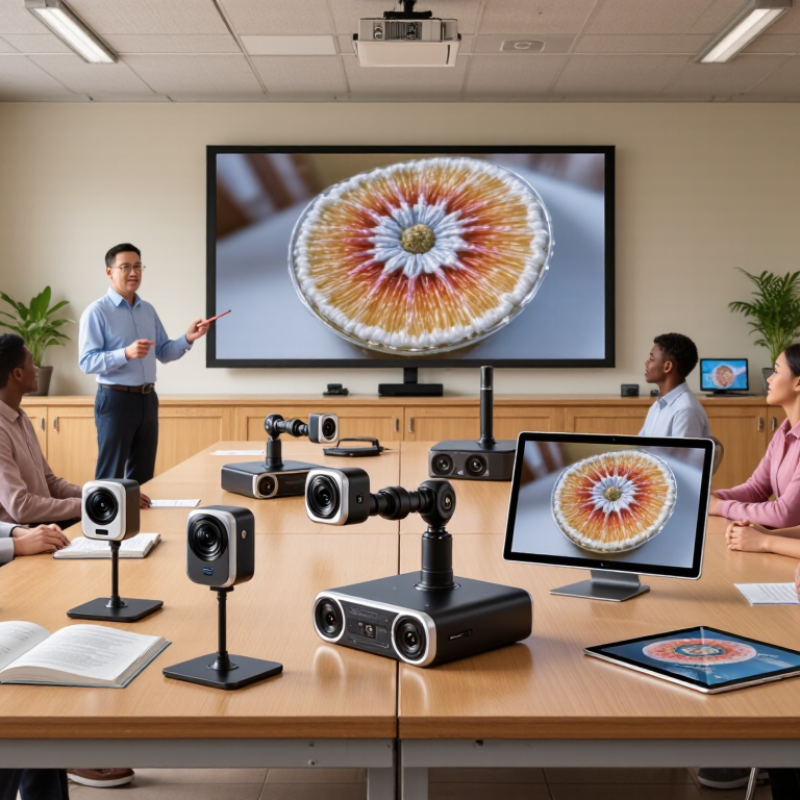
A document camera works like a small imaging system above a desk. Its sensor converts reflected light into digital image data. Sensor size and resolution affect detail, but lighting matters too. A glossy worksheet can create bright glare, while a dim room may make fine pencil marks hard to see. The lens also shapes the result. Autofocus is convenient, though it can hunt when hands move beneath the camera.
Common types include overhead-arm cameras for classrooms, compact folding models for travel, and fixed visualizers for shared workspaces. Their capture systems may send video through USB or wirelessly to a display. Some offer adjustable lighting, rotation, or close-up modes. These features help with maps, small diagrams, and three-dimensional objects. Yet a longer feature list does not guarantee a clearer image. A sturdy stand and steady framing can matter more during a lesson.
Tips: Check whether the camera focuses reliably at both page size and close range. Test it with a real worksheet, not just a printed chart. Look for sharp text near the page corners, even lighting, and controls you can reach without shifting the camera. Specs are useful, but room conditions can change the result.
A desktop document camera with 4K UHD captures an image measuring 3,840 × 2,160 pixels. That equals about 8.3 million pixels. The International Telecommunication Union’s Recommendation ITU-R BT.2020 specifies this UHD image format. For teaching or archiving, the extra detail can help preserve small print, pencil marks, and fine diagrams. It also gives users more room to crop an image without immediately losing legibility. A tiny footnote, enlarged on a classroom display, is a practical test.
Pixel count is not the whole story. ISO 12233:2023 describes methods for measuring digital camera resolution, highlighting why image sharpness needs more than a headline specification. A poorly focused page, dim lighting, or glare from glossy paper can still soften a 4K capture. Try placing a printed page under the camera, then check thin lines and small text at full size. Notice the edges. If letters look smeared, adjust focus and lighting before assuming the camera needs more resolution. One caveat: larger, detailed files may take more storage and bandwidth, depending on the device and workflow.
Portable document cameras suit instructors, field teams, and anyone who moves between rooms. A foldable arm, small base, and single USB cable can make setup quick. With USB Video Class (UVC), a camera can send video through a standardized interface that supported operating systems recognize without a dedicated capture driver. The USB-IF UVC specification defines this device class. Still, UVC is not magic: host support, resolution, and camera controls can vary.
AVIXA’s 2024 Industry Outlook and Trends Analysis estimated global professional audiovisual revenue at $325 billion in 2024, with growth projected through 2029. That broader market context points to sustained demand for flexible AV tools, though it does not measure document-camera sales specifically. In daily use, UVC can reduce setup friction: connect the camera, select it in a video app, and frame a worksheet or small object. A glossy page may still glare, and autofocus can hunt when a hand enters the frame. Real rooms are messy.
Tips: Before buying, confirm the camera’s UVC version and your computer’s supported formats. Test it with the actual meeting or teaching software. Check cable length, hinge stability, and focus under ordinary room lighting. A short test saves frustration.
Ceiling-mounted document cameras keep the teaching surface clear and reduce equipment handling. They work well in classrooms, training rooms, and meeting spaces where presenters regularly show paper, small objects, or handwritten notes. The camera should sit above the main demonstration area, with enough clearance for hands and larger materials. A quick test with a book and a sheet of paper can reveal framing problems before installation.
Coverage depends on lens range, mounting height, and the size of the work surface. A wide view may capture the whole table but make text too small to read. A tighter view improves detail, though objects can slip out of frame. Check both positions from the farthest seat, not just on a nearby monitor. Small text is unforgiving.
Installation also affects room integration. Plan cable routes, power access, ceiling structure, and service access before fixing the mount. Coordinate camera placement with lights, projectors, speakers, and ventilation outlets to reduce glare and visual clutter. In practice, room drawings often look cleaner than the actual ceiling. I would leave adjustment room where possible; even careful plans can miss a beam or shadow. After mounting, test live images under normal lighting and ask someone at the back to read a page aloud. That feedback can expose issues a control-room view misses.
| Ceiling-Mount Configuration | Typical Installation | Coverage and Framing | Best-Suited Spaces | Room Integration | Key Considerations |
|---|---|---|---|---|---|
| Fixed overhead mount | Camera is secured to a ceiling plate or short drop pole above the presentation surface. | Provides a consistent top-down view. The usable area depends on mounting height, lens angle, and the camera’s field of view. | Classrooms, training rooms, and spaces with a dedicated document or demonstration table. | Can connect to a room display or video system through supported cabling; cable routes are commonly concealed in the ceiling. | Set the height and lens angle to include the full working area while keeping text legible. Confirm that lights and other fixtures do not obstruct the view. |
| Motorized lift mount | Camera is attached to a powered ceiling lift that lowers it for use and retracts it when not needed. | Coverage varies with the lowered position and camera optics; repeatable preset positions can help maintain framing. | Multi-purpose rooms where a clear ceiling or flexible room layout is important. | May be coordinated with room control, display, and power systems. The lift requires a suitable mounting structure and a planned cable path. | Allow for lift clearance, service access, and safe movement. Check load limits and verify that the camera remains stable at its operating position. |
| Long-drop pole mount | A ceiling-supported pole places the camera closer to a high or open ceiling’s presentation surface. | The lower camera position can make a tabletop area easier to frame, though the final view still depends on the lens and mounting geometry. | Rooms with high ceilings, lecture spaces, and demonstration areas with a fixed work surface. | Works with ceiling-routed power and signal cabling; the pole can be aligned with other room equipment during installation. | Use a structurally appropriate support and minimize vibration. Consider sightlines, head clearance, and access for cleaning or adjustment. |
| Recessed ceiling mount | Camera and mounting hardware are installed partly or fully within a suitable ceiling cavity or enclosure. | Coverage depends on the camera’s deployed position and whether the design permits adjustment or movement. | Conference rooms and teaching spaces where a low-visual-impact installation is preferred. | Can create a tidy appearance with concealed cabling and coordinated ceiling finishes, subject to building and equipment requirements. | Check ceiling depth, ventilation, access panels, and maintenance needs before installation. Not every ceiling or camera is suitable for recessing. |
| Ceiling-mounted PTZ camera used for document capture | A pan-tilt-zoom camera is mounted overhead and directed toward a designated document or object area. | Can change framing remotely; effective detail depends on optical zoom, focus performance, lighting, and distance from the subject. | Lecture halls and hybrid rooms that need both presenter views and close-ups of objects or documents. | May integrate with room video systems and control interfaces. Presets can switch between a work surface and other room views. | Confirm that close-up focus and detail meet the use case. A PTZ camera may not provide the same document-specific lighting or handling features as a dedicated document camera. |
Planning note: Coverage, mounting height, cabling, and compatibility vary by camera, lens, ceiling structure, and room layout. Confirm dimensions and installation requirements with the equipment documentation and a qualified installer.
Choosing a document camera in 2026 starts with the material you need to show. Fixed overhead models suit desks and teaching stations, while portable, foldable cameras travel easily between rooms. Resolution matters when viewers must read small print or inspect fine lines. A 4K image can reveal more detail, but only if the display and connection support it. Small text suffers. Frame rate matters more when pages turn, objects move, or a hand demonstrates a process. Thirty frames per second usually works for still documents; sixty can make motion look smoother.
Connectivity shapes setup and reliability. USB models connect directly to a computer and often work well for online lessons. HDMI can send video straight to a classroom display, reducing reliance on a computer. Wireless connections keep tables clear, but network delays or compression may soften the picture. Check which resolution and frame rate are available through each connection. Cable-free is not always better.
Match the camera to its real use. Teachers showing worksheets may value fast autofocus and a broad capture area more than 4K. Lab demonstrations benefit from sharp close-ups, steady focus, and a mount that holds position. For small spaces, a portable arm is practical, though it may wobble when adjusted. One specification can be misleading: maximum resolution may not be available at the highest frame rate. Test with a printed page and a moving object before choosing.
It uses a sensor to turn reflected light into digital images. Lighting and lens quality affect how clearly viewers see pencil marks and printed text.
Overhead-arm models suit classrooms, folding models travel easily, and fixed visualizers fit shared workspaces. The right choice depends on where you use it.
No. Sensor size, lighting, lens quality, and steady framing also matter. A glossy worksheet can still look washed out.
Show it a real worksheet. Check text near the corners, close-up focus, and even lighting. Printed charts may hide problems.
Many use USB Video Class, or UVC, for standardized video capture. Computer and software support can vary, so test your setup first.
Moving hands can make autofocus search for a new target. A steady camera helps, but the feature may still hesitate.
Check mounting height, work-surface coverage, cable routes, power, and service access. Keep the camera clear of lights and ventilation outlets.
Test a book and a sheet of paper under normal room lighting. Ask someone at the back to read the page aloud. Small text is unforgiving.
A Document Camera turns physical objects, books, and written materials into live digital images. Its sensor captures light, the lens focuses the image, and the capture system sends the video to a display or computer. Different camera types are designed for different teaching and presentation environments, so image quality depends not only on the sensor but also on lighting, focus, positioning, and connection options.
Desktop models offer a stable setup and may capture 4K UHD images at 3,840 × 2,160 pixels, making fine details easier to show. Portable models are easier to move between rooms, and USB UVC support allows standardized video capture with compatible devices. Ceiling-mounted cameras keep desks clear and can cover a larger presentation area, but require careful installation and coordination with room layout. When comparing types, consider resolution, frame rate, connectivity, coverage, portability, and the intended use. The best fit balances clear image capture with the practical needs of the space.